
Test your experiment online
Goal: Run a pilot of your experiment on Pavlovia to ensure it works correctly in the browser before sharing it with participants.
Before you start
You should already have:
An account on Pavlovia (https://pavlovia.org/)
A PsychoPy experiment linked and synced to a Pavlovia project
What this step covers
In this step, you will:
Launch a pilot test of your experiment in the browser
Check that stimuli, timing, and responses behave as expected
Identify and fix common errors before recruitment
Launching a pilot
Go to your Pavlovia project page.
Ensure the project status is “Pilot”.
Click “Pilot” (top right) to open the experiment in a browser window.
Complete the experiment yourself to verify functionality.
On completion of a Pilot run (not running mode) a data file will download automatically to your computer.
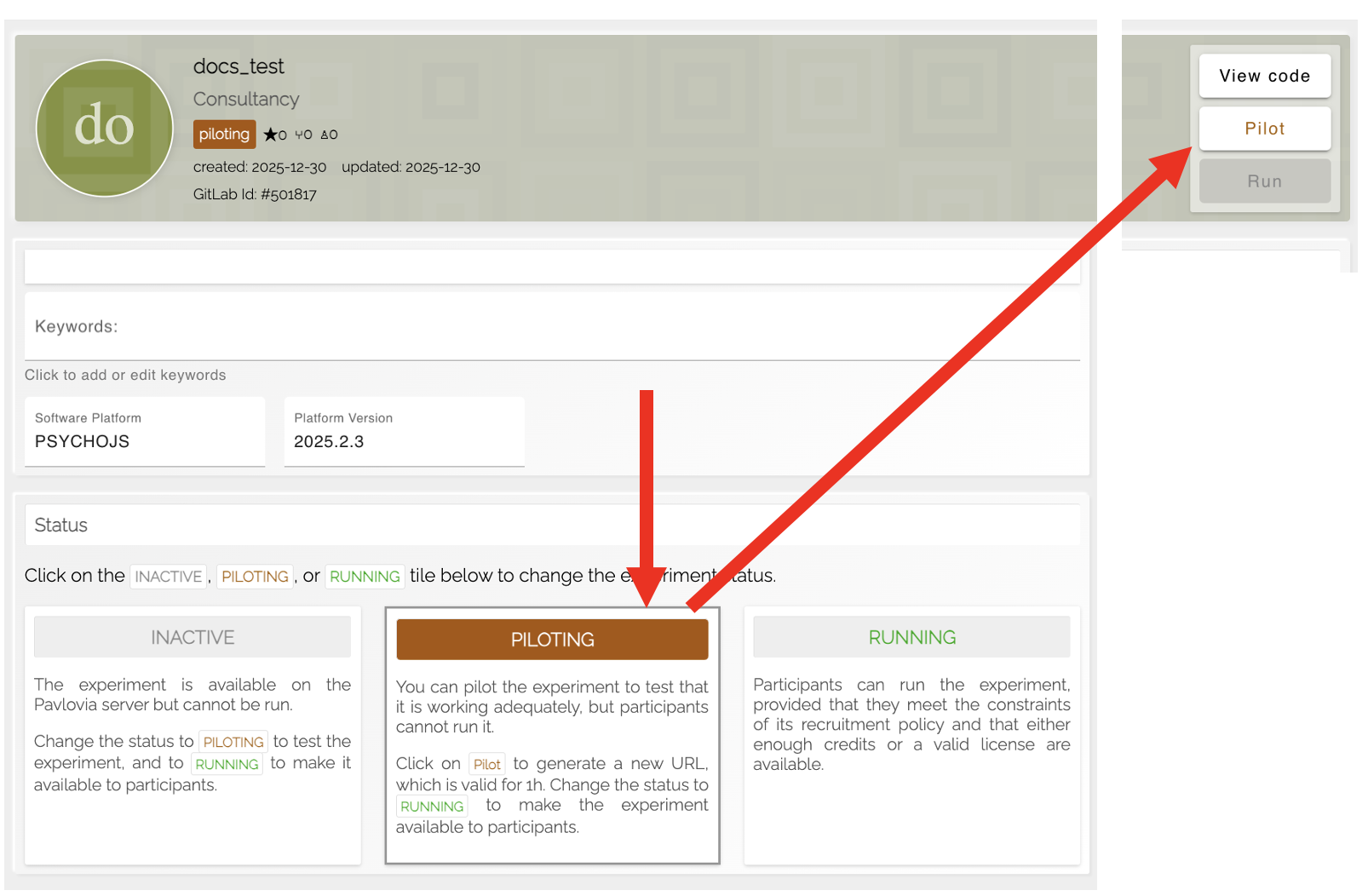
Fig. 21 How to set your Pavlovia project to pilot mode and launch it in pilot mode for testing.
Check for common issues
Missing resources (“Unknown Resource Error”): Ensure all images, sounds, and conditions files are uploaded.
JavaScript/translation errors: If using custom Python code, make sure it has a compatible JS version or is in a JS code component (Known limitations when running online).
Timing or display problems: Check that stimuli appear as expected and response collection works.
Test a range of browsers (Chrome, Firefox, Safari) to ensure compatibility and devices, in theory your experiment should work on all modern browsers, however the online environment introduces a range of possibilities, it is useful to catch cases where the set up might not be optimal early on, in which case you can screen out participants in specific hardware/browser combinations.
Debugging tips
Use the browser console (usually F12 or right click → “inspect” → “console”) to view errors or warnings.
Simplify routines one at a time to identify where issues occur (in Routine Settings you can select Testing → Disable Routine, similarly in components you can select Testing → Disable to help pin point the problem).
Make sure files and resources are correctly referenced (e.g. no spelling, capitalization or punctuation differences).
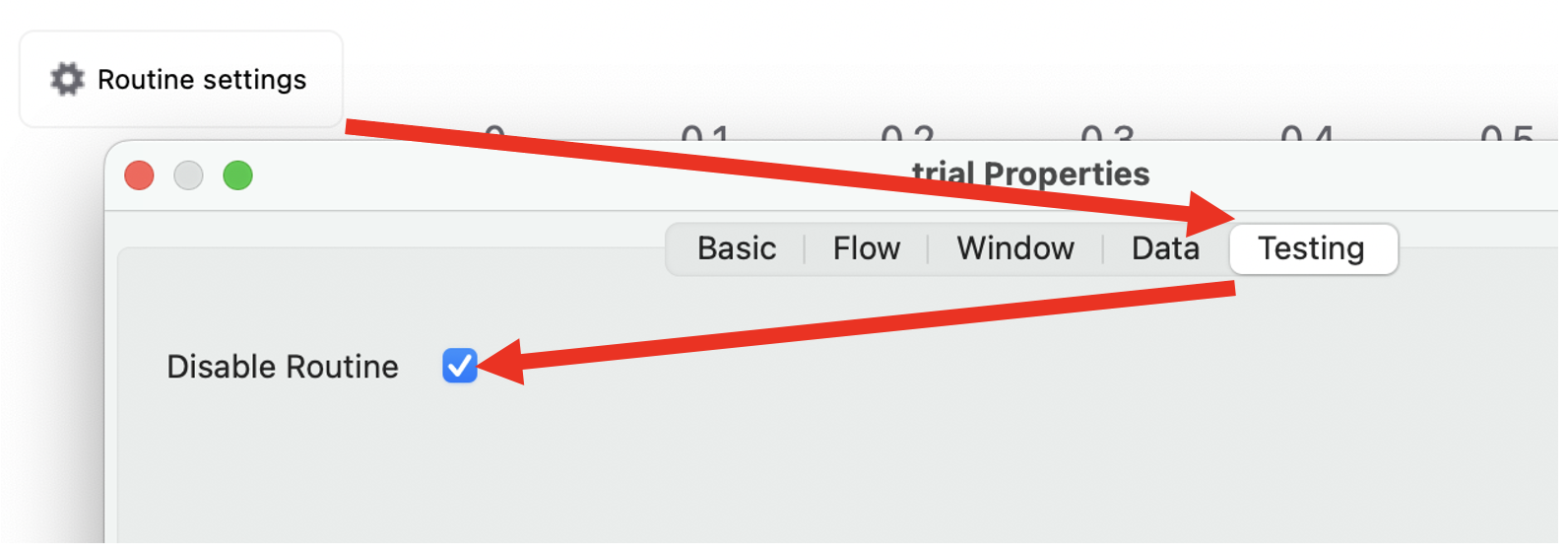
Fig. 22 How to disable specific routines for testing and debugging in PsychoPy Builder.
Next step
Once your experiment passes testing, you can make it available to participants: