
Connecting a Pavlovia Project to an OSF Project
This guide explains how to connect a Pavlovia project to an OSF project, allowing you to use OSF to share files from your Pavlovia repository. Note that this guide is based on the “Add on” functionality available with OSF projects, we don’t currently know if this feature will continue to exist after November 2026 and we hope to update this guide accordingly.
Why connect Pavlovia and OSF?
OSF has announced changes to its services that will affect how projects can be used in the future. From 16 November 2026, users will no longer be able to create new projects or child components within existing projects. From February 2027, OSF projects will become read-only.
OSF will continue to support important research workflows such as planning, preregistration, and sharing papers and preprints. However, one of the main gaps for researchers will be the ability to actively share and manage experiment files, analysis scripts, datasets, and other research materials within an OSF project.
This is where Pavlovia may be useful.
Pavlovia can already be used to store and share experiment files.), data, analysis scripts, and other files associated with a research project. What Pavlovia does not currently provide is the full range of OSF functionality around preregistration and sharing papers/preprints with a generated DOI.
Connecting the two services therefore provides a way to combine their strengths:
OSF → preregistration, project documentation, papers and preprints
Pavlovia → experiment files, data, scripts, stimuli and version-controlled research materials
The connection works because Pavlovia uses GitLab for version control, and GitLab is supported as an add-on within OSF.
Important: Pavlovia currently has no explicit restrictions on storage limits for projects. It was not envisaged as a place for storing very large files (e.g. EEG data storage), so it may be that storage restrictions are introduced in future as we monitor the situation.
However, using the Add-on functionality below, you can integrate other storage methods, including Box, GitHub and Drive. Through multiple add-ons, you could still use OSF for your Open Science workflow, but use add-on features for storage of experiments and data.
Connecting Pavlovia to OSF
There are three main steps:
Create a personal access token on Pavlovia’s GitLab.
Add and configure the GitLab add-on in OSF.
Select the Pavlovia project and folders you want to make available through OSF.
1. Create a personal access token on Pavlovia
Pavlovia uses GitLab to manage the files in your projects. You therefore need to create a personal access token that allows OSF to access your GitLab account.
First, sign in to Pavlovia.
You can access the underlying GitLab interface either by:
going to Dashboard → Experiments → select an experiment → View code, or
changing the URL from
https://pavlovia.org/tohttps://gitlab.pavlovia.org/.
Once you are in GitLab:
Open Preferences.
Select Access Tokens.
Select Add new token.
Give the token a name, for example:
my_osf_tokenSet an expiration date.
Important: Personal access tokens currently have a maximum lifetime of around one year. You will therefore need to create a new token and update the OSF connection when the token expires if you want to maintain the connection.
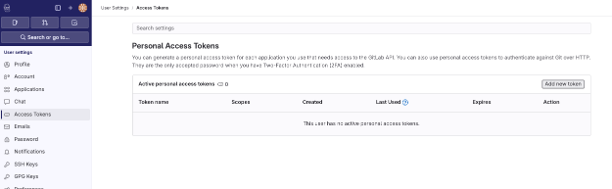
Fig. 28 A screenshot of Gitlabs personal access token settings screen.
Choosing the token permissions
If OSF only needs to read files from your Pavlovia project, select:
read_apiread_repository
These permissions should be sufficient for the OSF connection described in this guide.
You can then select Create personal access token and copy the token.
Important: Make sure you copy the token when it is displayed. You may not be able to view it again later.
2. Add GitLab to your OSF project
Next, configure the GitLab add-on in OSF.
Open the OSF project you want to connect to your Pavlovia project and:
Select Add-ons.
Search for GitLab.
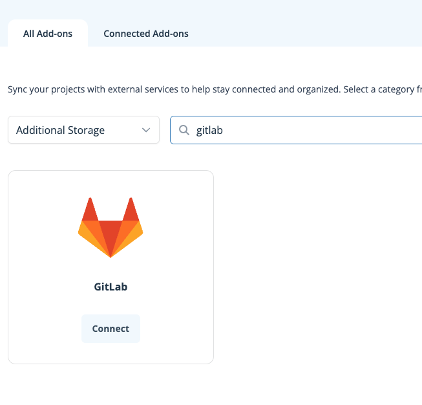
Fig. 29 A screenshot of the OSF interface where All Add-ons can be searched. The searchbar has the phrase gitlab which reveals the gitlab add on with the option to Connect.
Select the GitLab add-on.
If this is your first time connecting OSF to Pavlovia, select Set up new account.
You will then be asked for your GitLab account details.
For Host URL, enter:
https://gitlab.pavlovia.org/
For Personal Access Token, paste the token you created in the previous step.
You can also give the account a recognisable name, such as:
GitLab [your username]
Then select Authorise.
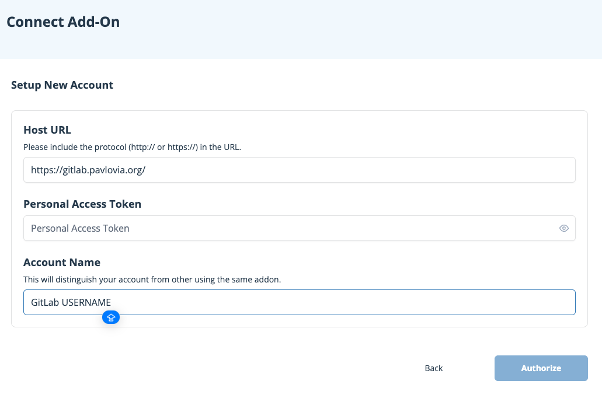
Fig. 30 A screenshot of the OSF interface where one can Connect Add-on. The Host URL reads as https://gitlab.pavlovia.org, the personal access token is empty (but will be populated with the users access token), the Account Name field contains GitLab USERNAME.
Once the account has been authorised, return to the GitLab add-on and select Connect. You should now be able to choose Existing account and select the GitLab account you just configured.
3. Connect your Pavlovia project
After selecting your GitLab account, OSF should display the GitLab projects that are available to you.
Find and select the Pavlovia project you want to connect.
You should then be able to select the folders within that project that you want to make available through OSF. For example, you might choose:
datastimulianalysisexperiment
Select the folders you want to connect and complete the setup.
Your selected Pavlovia files will now be accessible through your OSF project.
What does this connection do?
The GitLab add-on provides OSF with access to the files stored in your Pavlovia GitLab repository. This means that you can use your OSF project as a central place to document your research while keeping the actual experiment and research files in Pavlovia. For example, you could structure your workflow like this:
This can provide a useful combination of OSF’s research-management features and Pavlovia/GitLab’s version-controlled file storage.
Important considerations
The connection is primarily useful for sharing/accessing files from Pavlovia through OSF. It does not turn Pavlovia into an OSF project, nor does it give Pavlovia all of OSF’s functionality.
In particular, Pavlovia currently does not replace OSF for features such as preregistration or DOI-generating preprint sharing.
Personal access tokens currently have a maximum lifetime of around one year. You will therefore need to create a new token and update the OSF connection when the token expires if you want to maintain the connection.
Important: Pavlovia was not envisaged as a place for storing very large files (e.g. EEG data storage), so it may be that storage restrictions are introduced in future as we monitor the situation.
However, using the Add-on functionality described here, you can integrate other storage methods, including Box, GitHub and Drive. Through multiple add-ons, you could still use OSF for your Open Science workflow, but use add-on features for storage of experiments and data.